Parameters
The Parameters tab is used to set up objects. Its main tabs are General Data, Areas, and Billing. You can also enable or create additional parameters (properties), which allow you to view more detailed statistics.
Object Types
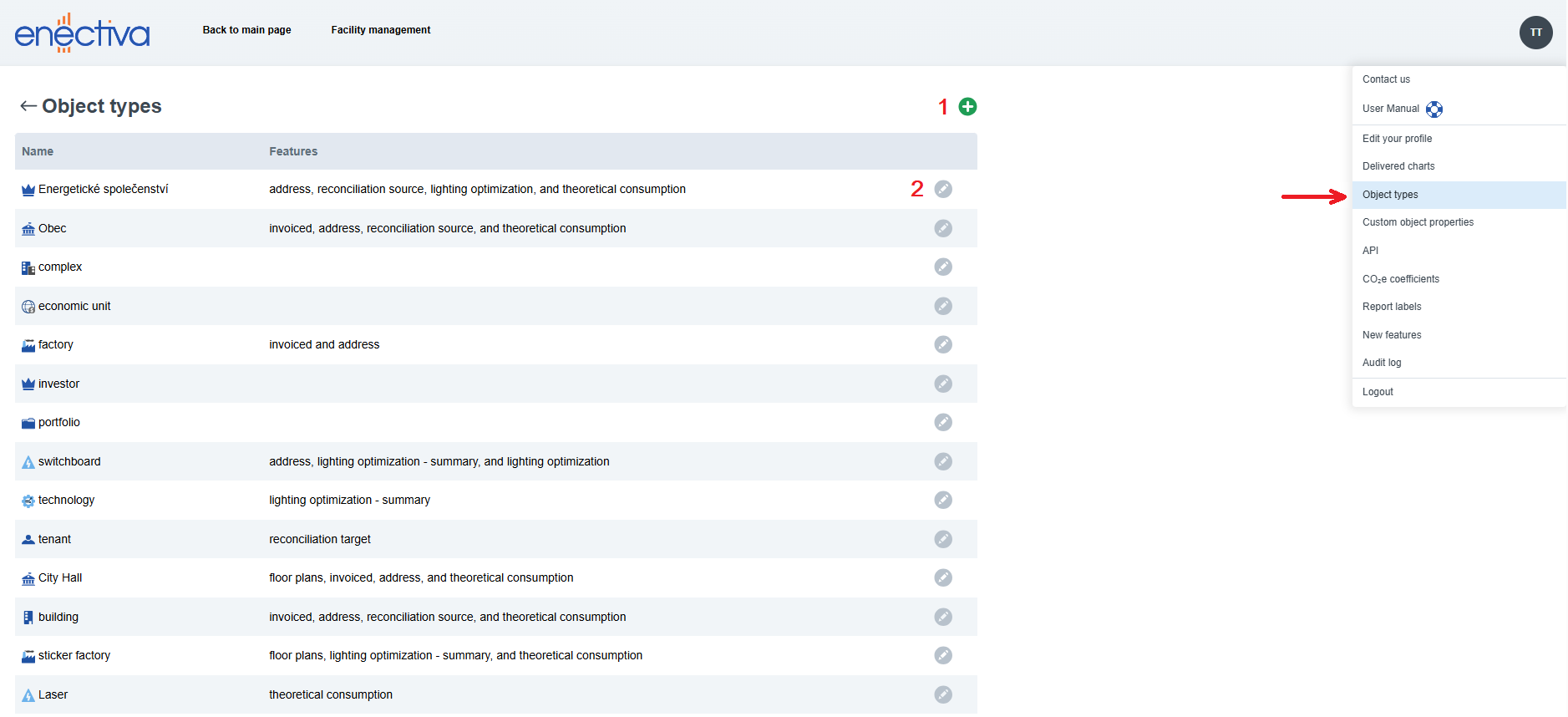
The object type and its enabled features determine which information and settings can be added to the object.
In the top-right corner of the application, select Object Types from the dropdown menu. On this page, you can:
- create custom object types as needed
- edit existing object types
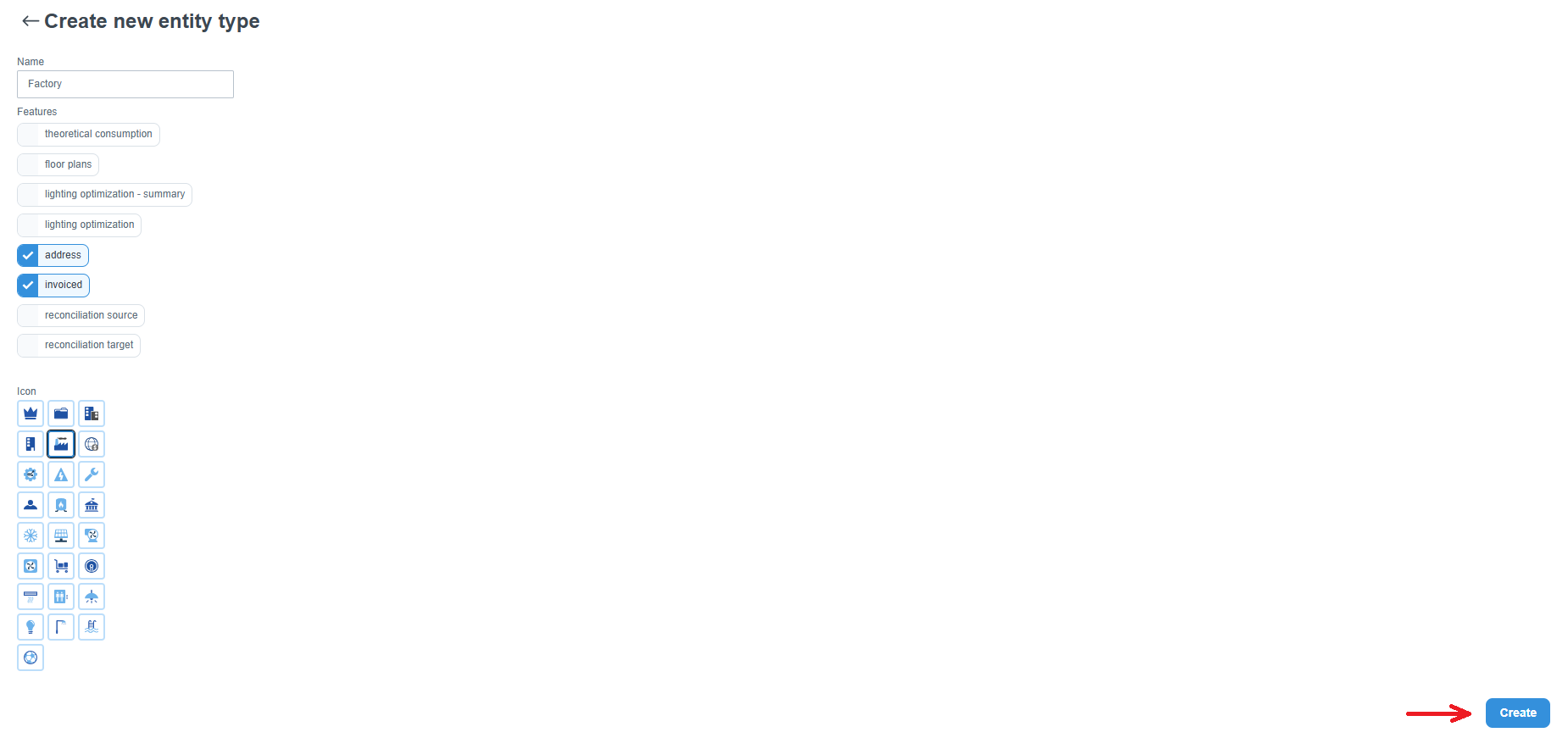
When creating a new object type, enter a name and confugure its features as needed. You can also select an icon. Don’t forget to save your changes by clicking the Create button.
Object Properties
If you need to set additional parameters, such as the number of people in a building (employees, tenants, etc.), you must first create a new property.
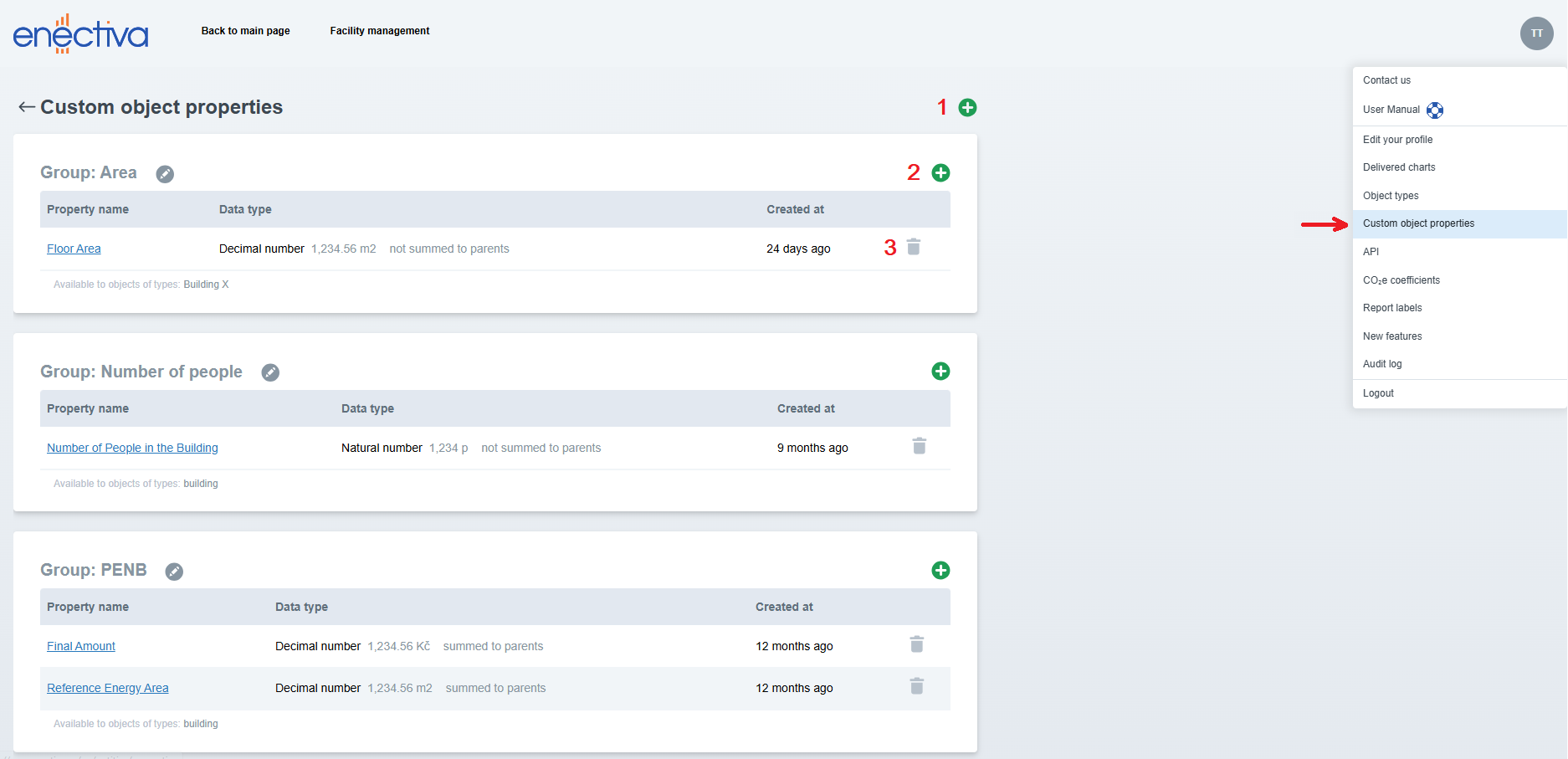
In the top-right corner of the application, select Custom object properties from the dropdown menu. On this page, you can:
- click the plus icon to create a new property group
- add individual properties by clicking the plus icon within a group
- delete a property by clicking the trash icon (see below)
When creating a new property, fill in the following fields:
- property name
- data type (e.g. decimal numbers)
- unit (e.g. m², persons, etc.)
A property can be marked as a divisor. If enabled, it can be used to calculate values per unit (e.g. energy consumption per person or per floor area).
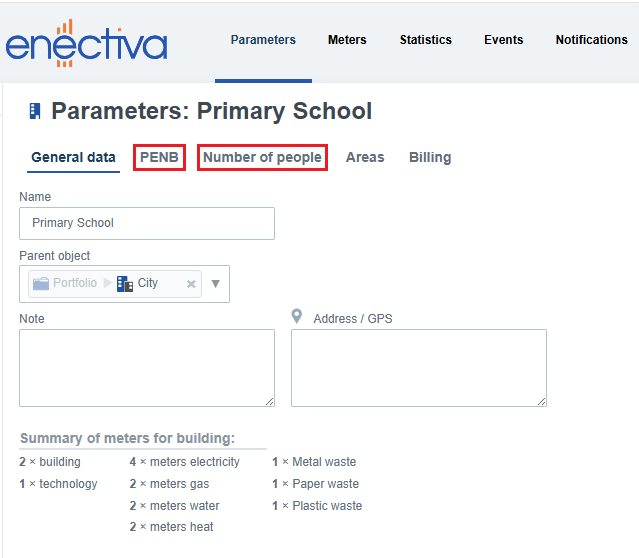
After creation, the property group appears as a separate tab in the object details, using the group name.
Deleting a Property
A property can be deleted by clicking the trash icon if the following conditions are met:
- The property has no values and is not used anywhere - it can be deleted directly.
- The property has assigned values but is not used anywhere - a list of entities with this property is displayed; after confirmation, the property can be deleted.
- The property is used in any of the following contexts: report template, theoretical consumption formula, notification, or delivered charts: - it cannot be deleted.