Exports
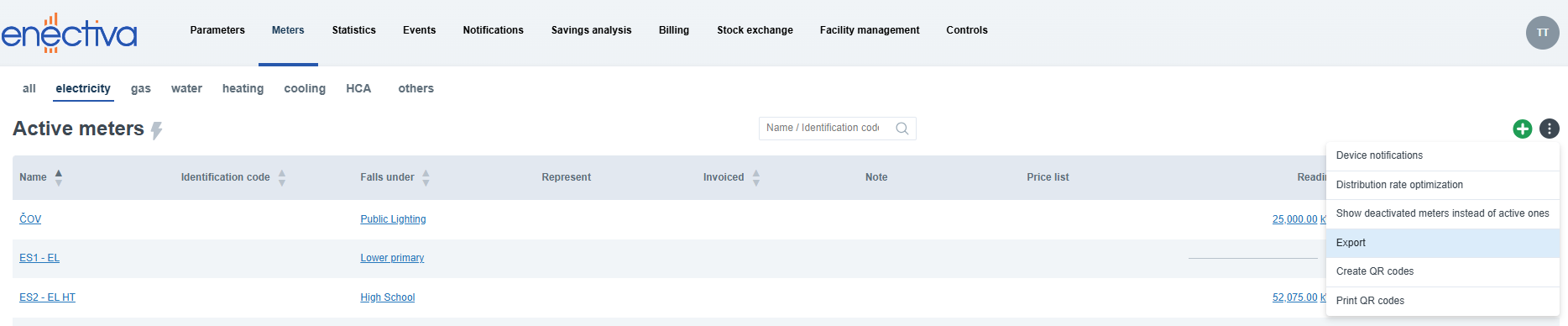
This chapter describes how to create and use exports in the application. To access exports, open the Meters tab, click the ⋮ (explore more actions) menu, and select Export.
Export templates
Export templates define the structure and content of exported files. To manage the templates, click Manage templates on the right.
By default, the application provides the following predefined templates:
- Default readings export
- Default data points export
- Default consumption deltas and cost export
- Default export for reconciliations
To create a custom template, click the + button in the top right corner and choose the type of template you want to create:
- Readings / Data points - exports individual meter readings or data points within a selected time range.
- Consumption deltas / Cost - creates summarized consumption and cost reports for selected objects, meters, and energy types.
- Reconciliations - displays initial meter states, final meter states, and calculated consumption for a selected period.
The following sections describe how to configure each export type.
Readings / Data points
- Enter the template name.
- Select additional columns to include in the export.
- Use the arrow in the top left corner of the table to switch the table layout.
- Click x to remove a dimension from the axis (for example Data series) and replace it with another dimension (for example Meters).
- Use the arrows next to the dimension on the left side of the table to change the sorting order.
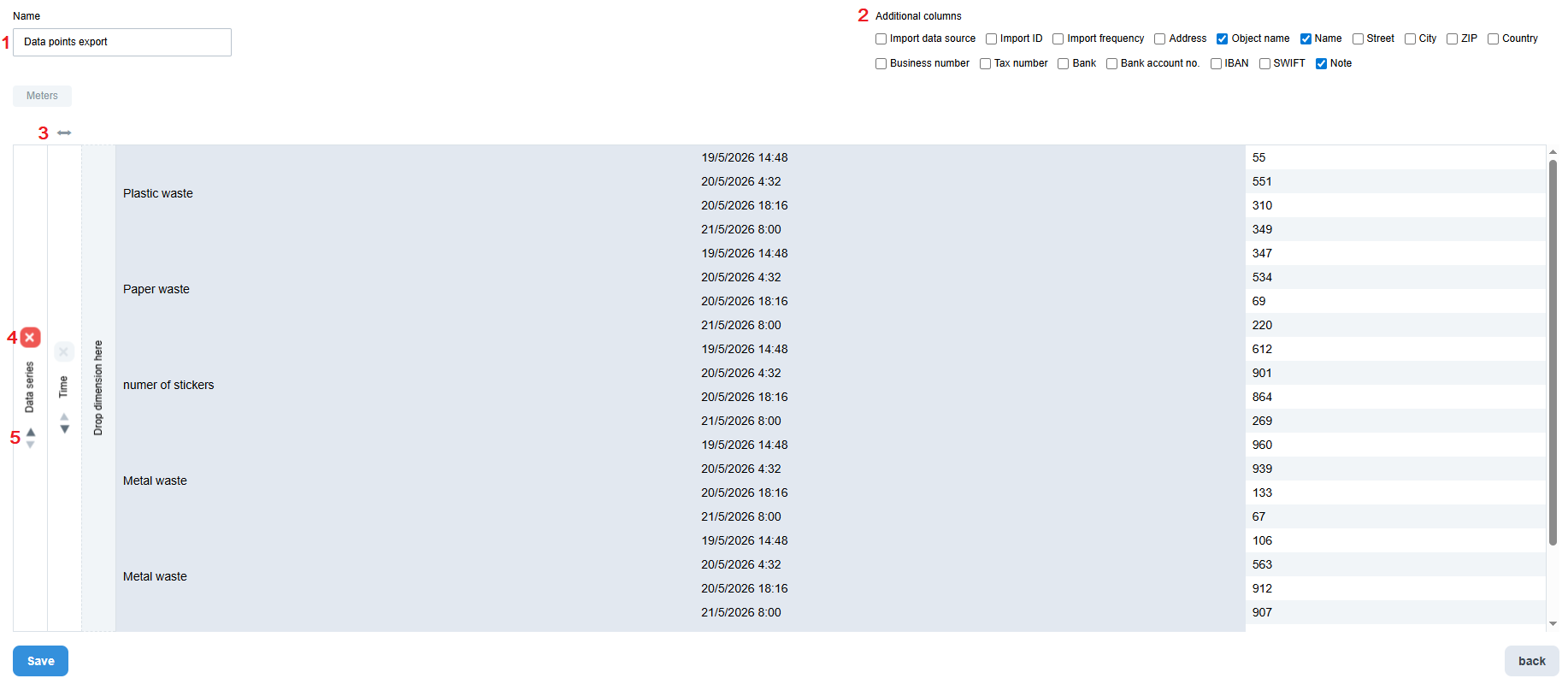
The table shows how the exported XLSX file will be structured.
Consumption deltas / Cost
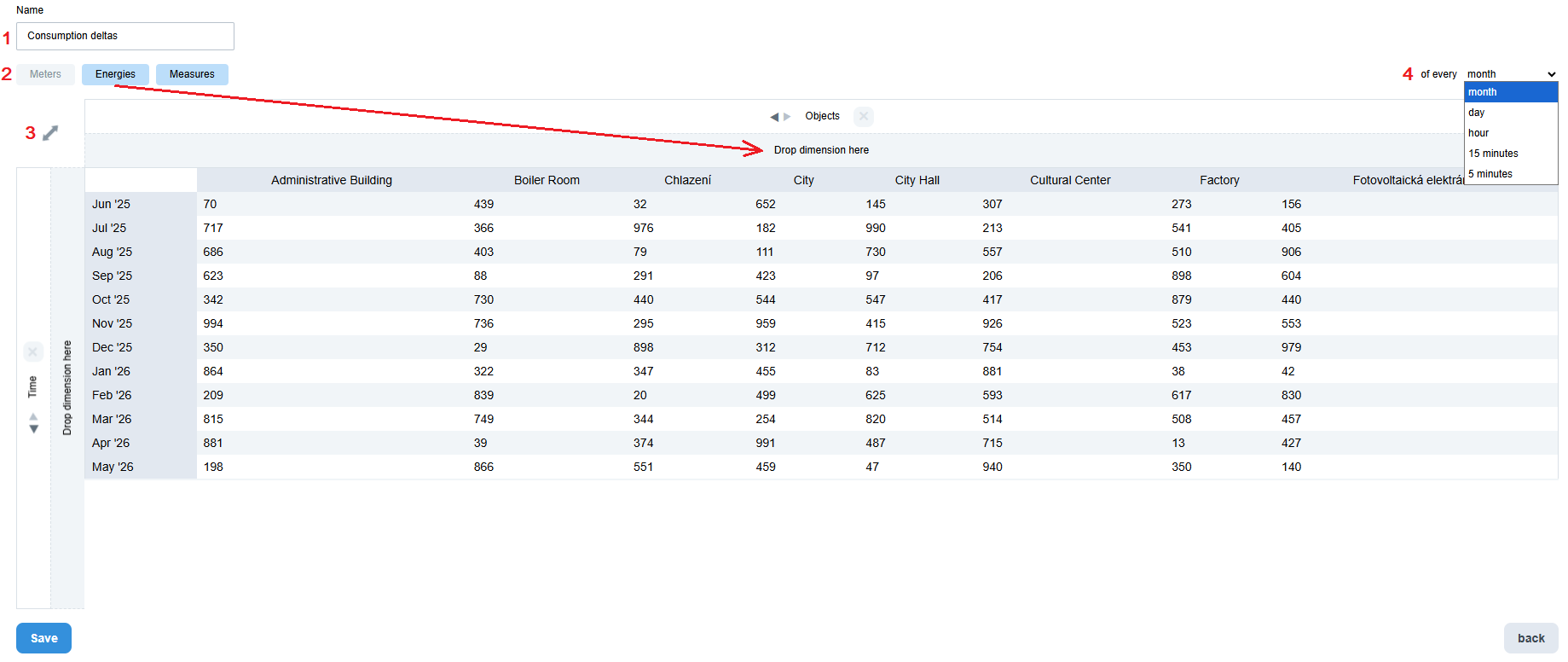
For consumption or cost exports, the layout is fully configurable.
- Enter the template name.
- Drag items into the table to define rows and columns. The Time dimension must be placed on one of the axes.
- Use the arrow in the top left corner of the table to switch rows and columns.
- Use the time settings in the top right to preview the export structure for different time intervals.
Reconciliations
The Reconciliations template has a predefined table structure that groups meters by object.
- Enter the template name.
- Select additional columns you want to include in the export.

After configuring the template, click Save.
Creating an export
On the export page:
- In the object tree on the left, select the object for which you want to create the export. Child objects are included automatically.
- Select an export template and optionally edit the export name. The selected template can be changed at any time using Use another template in the top right corner.
- Configure the export settings based on the selected export type. Details for each type are described below.
- Click Export.
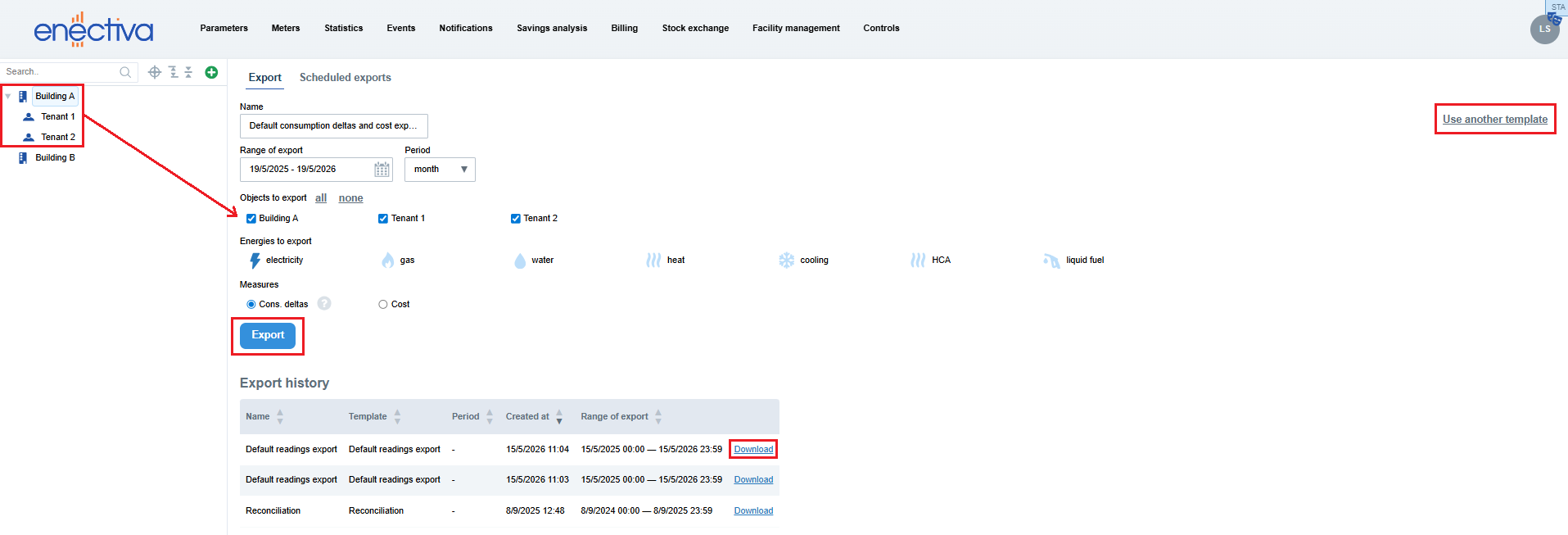
Generated exports are available in Export history, where they can be downloaded again at any time.
Export configuration details
Readings / Data points
Export frequency
Exports can be created as:
- One-time export - by selecting Export once
- Monthly export - monthly exports are automatically sent by email once all required meter data are available or on the 14th day of the month. The export date range is adjusted automatically.
Meters / data series selection
Use All / None to easily select or deselect all meters/data series. When exporting readings, you can also click an energy type to select all related meters. Individual meters can be selected or deselected by clicking the item in the list, while data series are selected using checkboxes.
Included data
You can configure how many readings/data points should be included in the export. The export can contain:
- all readings/data points
- only the first reading/data point from a selected interval
- only the last reading/data point from a selected interval
Consumption deltas / Cost
Object selection
Use All / None to easily select or deselect all objects. Individual objects can also be selected or deselected using the checkboxes in the list.
Energy type
Select which energy type should be included in the export.
Measures
Choose whether the export should contain:
- Consumption deltas - consumption values calculated from meter readings and profiles aligned to a standard time period
- Cost
If the template contains the Measures dimension, both values (Consumption deltas and Cost) are automatically preselected during export creation. The selection can still be adjusted manually. If the dimension is not used in the template, only one value can be selected.
Reconciliations
Energy and object selection
Use All / None to easily select or deselect all energies or objects. Energies can be selected by clicking their icons, while objects are selected using checkboxes in the list.
Meter corrections
If a meter contains corrections within the selected period, its values in the export may be split into multiple rows. This ensures that consumption remains correctly calculated even after corrections are applied.