Meter Replication
The Meter Replication feature lets you create a new meter in two ways – Replicate and Replace. An overview of both options is provided in the table below.
| Replicate | Replace | |
|---|---|---|
| Creates a new meter | ✔️ | ✔️ |
| Keeps the original meter active | ✔️ | ❌ |
| Copies the current meter configuration | ✔️ | ✔️ |
| Links the original and the new meter | ❌ | ✔️ |
Note
The Replicate option is not available for main or invoiced meters.
How to replicate or replace a meter
- Open the Meters tab.
- Open the details of the meter you want to replicate or replace.
- In the upper-right corner, click the ⋮ (explore more actions) menu and select Replicate meter.
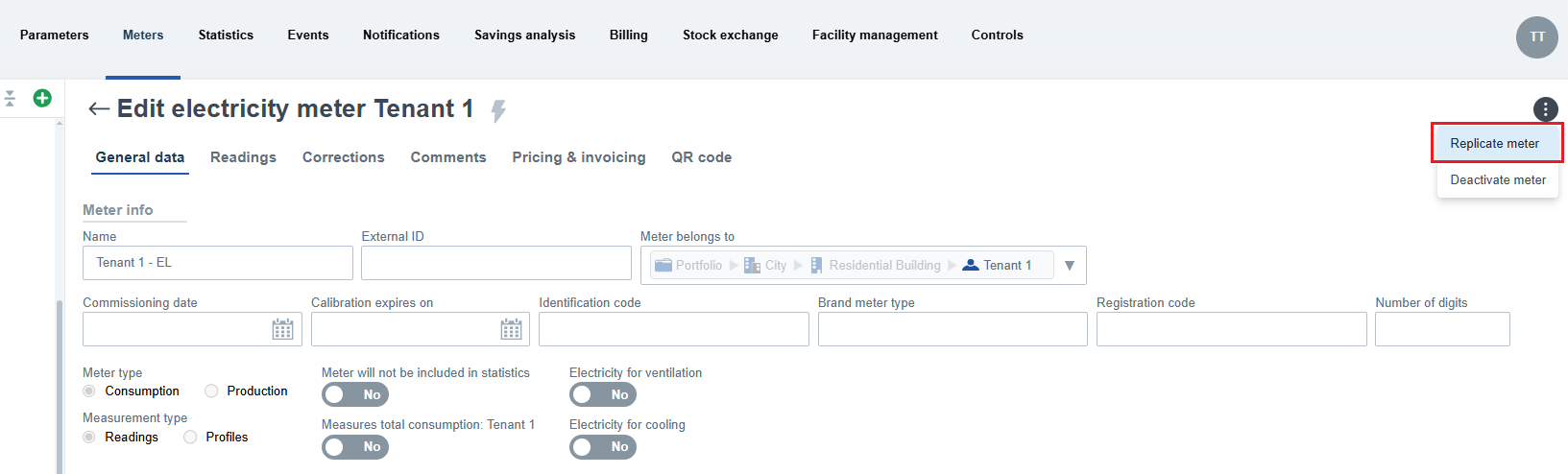
- In the dialog, select the desired option:
- Replicate
- Replace
- If you choose Replace, enter the replacement date.
- Click the Replicate meter button.
After confirming the form, you are redirected to the details of the newly created meter.
Meter Replication
When using the Replicate option, a new active meter is created. The original meter remains unchanged.
The new meter copies the current configuration of the original meter, including for example:
- meter type,
- import configuration,
- currently assigned price list,
- configured notifications,
- floor plan location,
- use in virtual meters,
- radiator (for HCA).
Historical settings (for example, previously assigned price lists) are not copied to the new meter.
Meter Replacement
The Replace option can be used, for example, when replacing a physical meter. After the form is confirmed, a new meter is created and the original meter is deactivated from the specified replacement date.
The new meter takes over from the original meter on the specified replacement date. If the replacement is performed retrospectively and readings, profiles, or other related data already exist on the original meter after that date, those data are transferred to the new meter.
After the replacement, both meters are linked by cross-references, making it easier to navigate the meter history.
Note
The replacement date must meet the system validation rules. For example, it cannot be set in the middle of an already invoiced period.